
PRT FumeFX Objects Explorer
Available in Krakatoa v1.6.0 and higher
Overview
- In Krakatoa v1.6.0, the rendering of Sitni Sati’s FumeFX simulations requires a dedicated PRT FumeFX Object to be created to turn the voxel grid of the fluid simulation into a particle cloud (in v1.5.x, the simulation grid was rendered directly).
- The PRT FumeFX Objects rollout in the Krakatoa Explorers floater can be used to create, overview, select, hide, unhide and mass-modify the settings of the PRT FumeFX objects in the scene.
User Interface
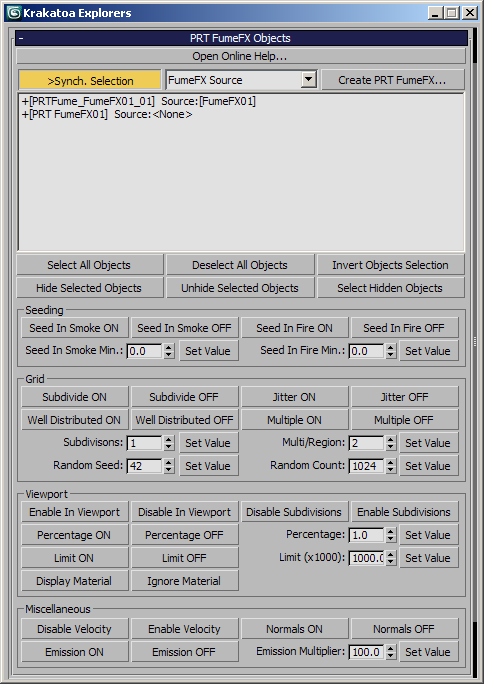
Sync. Selection button
- When checked (default), the list selection and the scene selection will be synchronized automatically in both directions - selecting PRT FumeFX objects in the scene will update the objects highlights in the list and highlighting objects on the list will select them in the scene.
- When unchecked, the scene and list selections will be decoupled and will not be updated (this is especially useful when working with heavy scenes with many objects).
Display Info drop-down list
- This list provides various display categories.
- All of them list the name of the PRT FumeFX object in [] brackets, prefixed by its unhidden/hidden state (+ or –), followed by the specific information selected from the list:
- The following display categories are available:
- FumeFX Source - shows the name of the volume source object and the FumeFX simulation it derives data from.
- Fire/Smoke Seeding - shows the state and the “Min. Threshold” values of the “Seed in Smoke” and “Seed in Fire” options.
- Region Seeding - shows the states and value settings of the “Subdivide Region”, “Jitter Position” and “Multiple Per Region” options.
- Random Seed Settings - shows the “Distinct Values” and “Seed” values.
- Viewport - shows the Viewport settings including “Enabled in Viewport”, “Disable Subdivisions”, “Percentage”, “Limit” and “Ignore Material”
- Miscellaneous - shows the “Disable Velocity”, “Generate Emission from Fire” and “Generate Normals…” options.
- Test Renderable State - shows the renderable state of the object.
Create PRT FumeFX button
- This button has the same functionality as the PRT FumeFX MacroScript in the Krakatoa Menu and toolbar.
- When pressed, if there are FumeFX simulation objects selected in the scene, a PRT FumeFX will be created for each one of them.
- If there are no valid selected objects, a PRT FumeFX will be created at the world origin.
- If the SHIFT key is pressed while clicking, the Command Panel will enter PRT FumeFX creation mode.
PRT FumeFX Info listbox
- The listbox shows the information about the PRT FumeFX objects in the scene.
- Each line represents an object, starting with a + or – sign to denote the visible/hidden state of the object, followed by its name and more information based on the Display Info drop-down list (see above).
- Selecting items on the list will select them in the scene if >Synch. Selection is checked.
- All mass-changing controls described further on this page will operate on the objects highlighted on the list.
- The list supports multi-selection using the Ctrl and SHIFT keys like in any Windows application - hold down Ctrl and click to add/remove from the selection, or hold SHIFT and click to select a range between the last click and the current one.
Select All Objects button
- Pressing this button will highlight all objects on the list.
- If >Synch. Selection is checked, this will also select them in the scene.
Deselect All Objects button
- Pressing this button will deselect all objects on the list.
- If >Synch. Selection is checked, this will also deselect them in the scene.
Invert Objects Selection
- Pressing this button will deselect the selected objects on the list and vice-versa.
- If >Synch. Selection is checked, this will also update the scene selection.
Hide Selected Objects
- Pressing this button will hide in the scene all objects highlighted on the list.
- The prefix symbol on the list will change from + to –
Unhide Selected Objects
- Pressing this button will unhide in the scene all objects highlighted on the list.
- The prefix symbol on the list will change from – to +
Mass-Changing Utilities
- The controls in this group can be used to modify base object settings in multiple highlighted PRT FumeFX objects at once.
- These settings are always assigned by the press of a button - the spinners are not directly affecting the highlighted objects but require the pressing of the Set Value button to do so.
- Similarly, for changing the checkbox properties between checked and unchecked, you habe to press the …ON or …OFF button corresponding to the respective property.
