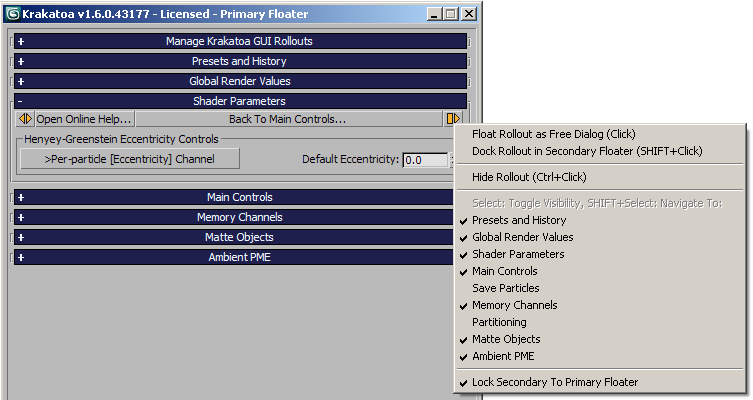
Manage Krakatoa GUI Rollouts Rollout
Available in: Krakatoa v1.5.0 and higher.
In earlier versions of Krakatoa, all rendering controls were located in a single Floating UI containing various rollouts. While the rolled up state of the rollouts could be controlled and was sticky, a large number of these rollouts were barely or never used by a large number of Krakatoa artists.
In Krakatoa v1.5.0, the abilities to hide rarely used rollouts, to define custom layouts and store and restore them from disk, to float every rollout as an independent dialog or to dock into a Secondary floater were added.
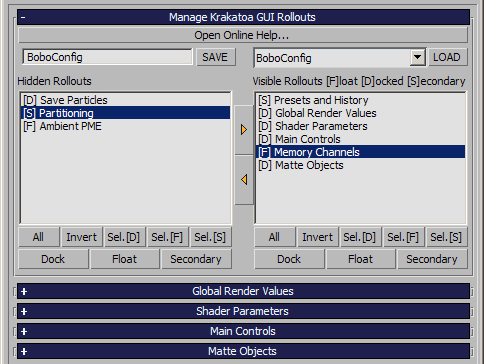
The Manage Krakatoa GUI Rollouts rollout is the only element of the Primary Floater that cannot be hidden, floated or moved to a Secondary floater. It provides the following functionality:
Hiding/Unhiding Rollouts
- The Manage Krakatoa GUI Rollouts rollout has two large list boxes.
- The left list box shows the names and docked state of all hidden rollouts.
- The right list box shows the names and docked state of all visible rollouts except for the Manage… rollout itself which is always visible.
- The letter [D] shows that a rollout is DOCKED to the Primary Floater (the default state).
- The letter [S] shows that a rollout is docked to the SECONDARY Floater.
- The letter [F] shows that a rollout is FLOATED as independent dialog.
- To hide one or more rollouts, select them on the right list and press the left arrow button [<] between the two lists to move them to the left list. The docked state will be preserved.
- To unhide one or more rollouts, select them on the left list and press the right arrow button [>] between the two lists to move them to the right list. Since the docked state is preserved, the rollouts will become visible AND docked/floated in their original location.
- Alternatively, double-click the rollout you want to move to the other list.
Selecting Rollouts on the lists
- Several buttons allow the selection manipulation of the two list boxes.
- The [All] button selects all rollouts in the corresponding list. This can be useful when changing the docked state or visibility of all hidden or visible rollouts.
- The [Invert] button inverts the selection in the corresponding list.
- The Sel.[D] button selects all rollouts in the corresponding list that are Docked to the Primary Floater.
- The Sel.[S] button selects all rollouts in the corresponding list that are Docked to the Secondary Floater.
- The Sel.[F] button selects all rollouts in the corresponding list that are Floated as independent dialogs.
Docking and Floating Rollouts
- The rollouts currently selected on either list can be docked or floated using the following buttons:
- Dock - all selected rollouts on the corresponding list will be set to Docked to the Primary Floater. Visible rollouts will be docked immediately. Hidden rollouts will be docked whenever they are moved to the visible list.
- Float - all selected rollouts on the corresponding list will be set to Floated as independent dialogs. Visible rollouts will be floated immediately. Hidden rollouts will be floated whenever they are moved to the visible list.
- Secondary - all selected rollouts on the corresponding list will be set to Docked to the Secondary Floater. Visible rollouts will be docked immediately. Hidden rollouts will be docked whenever they are moved to the visible list.
Custom Layout Presets
- The hidden/visible state of each rollout, as well as its floated / docked state can be saved to a custom layour file.
To Save
- Configure the User Interface using the controls in the Manage Krakatoa GUI Rollouts rollout or by using the [>] buttons in individual rollouts.
- Enter a name for the current layout into the text field in the upper left corner of the Manage… rollout.
- Press the SAVE button to store the layout to disk.
Using the Rollout’s []> button
- Every rollout except Manage Krakatoa GUI Rollouts has a []> button in the upper right corner.
- This button has two functions - Float/Dock the rollout using left-click and Open Context Menu using right-click.
Left-Click Float/Dock
| Keyboard+Mouse Action | Rollout State | Result |
|---|---|---|
| Left-Click | Docked in Primary or Secondary Floater | The rollout will be detached as a free FLOATING dialog. |
| Left-Click | Floating | The rollout will be DOCKED to the PRIMARY Floater. |
| SHIFT+Left-Click | Docked in Primary Floater or Floating | The rollout will be DOCKED to the SECONDARY Floater. |
| SHIFT+Left-Click | Docked in Secondary Floater | The rollout will be DOCKED to the PRIMARY Floater. |
| CTRL+Left-Click | nywhere | The rollout will be HIDDEN. |
Note:
- When a rollout is docked to the Secondary Floater and the Secondary Floater is empty, it will be opened automatically.
- When all rollouts are removed from the Secondary Floater, it will be closed automatically.
Right-Click Context Menu
- The Right-Click Context Menu provides the following options:
- Float Rollout As Free Dialog (Click) - visible when the rollout is docked.
- Dock Rollout in Secondary Floater (SHIFT+Click) - visible when the rollout is docked in the Primary Floater or detached as Floating dialog.
- Dock Rollout in Primary Floater (Click) - visible when the rollout is detached as Floating dialog.
- Dock Rollout in Primary Floater (SHIFT+Click) - visible when the rollout is docked in the Secondary Floater.
- Hide Rollout (Ctrl+Click) - always visible, hides the current rollout. It can be unhidden using the respective option further down in the menu of another rollout, or via the “Manage Krakatoa GUI Rollouts” rollout’s controls.
- Select: Toggle Visibility, SHIFT+Select: Navigate To: - this menu entry is always disabled and is the title of the following section which lists all rollouts with a checkmark when the rollout is visible and without when it is hidden.
- Toggling the checkmark toggles the visibility, while holding the SHIFT key navigates to the rollout.
- If the rollout to navigate to is hidden, it will also be unhidden.
- If it is unhidden, it will remain unhidden and will be put in focus, while all other visible rollouts will be rolled up.
- Lock Secondary To Primary Floater
- When this option is checked, the Secondary Floater will follow the Position and Height of the Primary Floater - when the Primary Floater is moved or resized, the Secondary Floater will be adjusted respectively;
- When this option is unchecked, the Secondary Floater can be placed and resized independently.